Showing posts with label water. Show all posts

Sunday, September 26, 2010

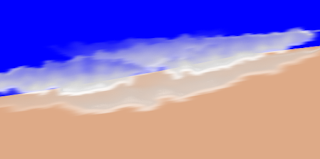
Turbulent Water

turbulent water
Experimenting with Inkscape's filters to simulate turbulent water.

Saturday, May 1, 2010

Falling water in a mountain stream

rapids in a mountain stream
Pictured above is stage two of the two-stage painting process using Inkscape. You may download a detail of the water layer from Google Docs. A few of the techniques and filters applied on top of the water in step two are not easy to examine until they are separated from the other layers and from the base image created in step one. The SVG download includes a contrasting background to highlight the details. This background is not part of the actual painting.

The sprite below shows step-one. The two-step process involves laying out the shapes, basic contrasting colors and values in the first step and saving that work as an image.


Then, in the second step, painting on top of that imported image goes smoothly and quickly. I have also used the two-step process successfully to paint a sunset by the Pacific Ocean.

The photo upon which this painting is based may be seen on flickr.

The photo is licensed under creative commons.

Sunday, March 28, 2010

Pacific Sunset Step Two

Pacific Sunset Step Two
The painting turned out nicely. The two-step process involves laying out the shapes, basic contrasting colors and values in the first step and saving that work as an image. Then, in the second step, painting on top of that imported image goes smoothly and quickly. Refer the the post of step one to see where I left-off in step one.

You may download the SVG source in xml format of step two of this painting from Google Docs.

I have also used this two-step process successfully to paint falling water in in a mountain stream.

Saturday, March 27, 2010

Pacific Sunset Inkscape Painting

This work in progress represents the first step in a new, two-step process with which I am experimenting using Inkscape 0.47. I have painted the basic areas in this first step. I will paint on top of this base image in the second step.

Inkscape can be quite memory intensive, so once I have nine or ten layers, each composed of gradients and filters, adding strokes or applying effects can take time waiting for the processor on my old PC to finish swapping. Moving parts of one layer to another layer, across too many layers, can be even more memory intensive. So this experiment will involve taking the painting to a point that satisfies me and upon which I can build. I will then export the work as a PNG, just as I have in for this post. This first step took less than one hour to paint. I mostly painted with a thin brush and then clipped the resulting shape from a rectangle so that the color below would show through the shape that I left unshaded in the top layer. Occasionally, I colored the shape and added it alone as a new top layer.

You can see the layers and palette that I used in the first step. The base image is build up in layers which are shown below.
layers step one
The background is on the top at the left while the foreground in in the bottom right. The image is made by stacking and aligning the layers row-by-row, from top to bottom and left to right. The palette also shows the order.

In the second step, I will import that PNG, add layers on top of the flattened image, and finish off fine points with brush strokes and filter effects.

The photo upon which this painting is based was released in the public domain. See the brilliant original entitled Pacific sunset by Andrew Schmidt.

Saturday, February 27, 2010

Inkscape seascape

seascape painting

This study of a wave is based on a photo by photographer Tony Armstrong:
http://www.flickr.com/photos/tonyarmstrong/

The photo is licensed according to:

Tuesday, February 16, 2010

Jenny Lake

Study of Mountain Reflection in Water


Jenny Lake is in the Teton National Park, WY. I chose this scene to study reflections in water because the original photograph contained high contrasts in the values across the water and because it is one of my favorite places. Reflections in dark water are a particular sort of challenge in Inkscape, so I have additional hints about painting high-contrast reflections to add to those that I outlined in the post entitled Painting water using Inkscape 0.47.

Two values of blue, two values of brown, two values of gray, and black were used as very thin brush strokes to compose the water. The browns and grays are all vertical strokes with vertical motion blurs while the blues and black are all horizontal strokes with horizontal motion blurs. The horizontal strokes also have the torn-edge effect while the vertical strokes have the ripple effect. I placed the dark strokes on the bottom and worked toward the light. The edges of each major color of the horizontal strokes would overlap if they were not interwoven -- that is, only the blurred edges overlap where the colors blend because of the transparency of the blurs. The real key is to break the vertical strokes with the horizontal strokes so the eye sees the reflection but it appears to be reflected on top of the rippling surface of the water.

In this study, I have not worked on the mountains (yet); they are tracings from the photo. I hope to work on the mountains at a later date, but for the time being, I have purposefully placed them "out of focus" as they are of less interest to me than the water in this study.

The photograph upon which this painting is based may be seen at: http://www.flickr.com/photos/jacdupree/176301129/. The Creative Commons License is:

Monday, February 15, 2010

Painting water using Inkscape 0.47

This quick sketch demonstrates a technique that I use to paint water in Inkscape, version 0.47. The effect is quite flexible.

the beginnings of a lake

Saturday, February 6, 2010

torn lines as waves in inkscape

The waves in this illustration demonstrate an another example application of the technique described in the torn lines as distant trees in inkscape post

torn lines as waves in inkscape

Saturday, November 28, 2009

Watercolor collection

A collection of my experiments to affect a watercolor painting style using the two-dimensional, Inkscape drawing software.

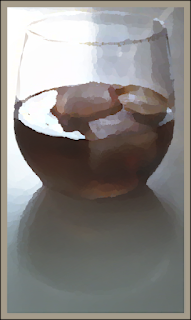
iced coffee
Iced-coffee


forest floor
Light on pine forest floor


gorge
watercolor-style painting of a river gorge


river
A river in the mountains of of the American West

Sunday, October 18, 2009

A wave using spiro splines and jam spread in Inkscape 0.47

wave

This wave was sketched very roughly using the brush tool in Inkscape 0.47 and then I outlined areas using Spiro splines and applied the jam spread filter effect to these shapes.

Monday, October 12, 2009

Study of hills and water inlet

inlet version two

The new version above is improved over the original below. This might be close to finished.


="inlet

The foreground and background still needs work in this study based on a photographic of Akaroa harbour by mollivan_jon on flickr. I have used Inkscape filters new to version 0.47 to paint the light and reflections to my satisfaction.

Akaroa on Wikipedia

If you refer to the original, you will see that I took gross liberties as far as composition of the paitning is concerned, but my intention was to focus on the shapes and the light and shadows on the hills as well as experiment with reflections on the water.

Thursday, July 16, 2009

Watercolor-style painting of a river gorge

Inkscape and the Gimp were both used to achieve this watercolor-style painting of a river gorge.


watercolor-style painting of a river gorge

Tuesday, July 14, 2009

A river in the mountains of the West

a river in the West

This painting is an attempt to simulate a watercolor style using Inkscape.

The effects are achieved using many small and blended gradients.

Saturday, May 23, 2009

Creating a shoreline in Inskcape using a photograph as a model

My incomplete project:


sailboat

The purpose of the demonstration:


To show how to use layers and sections of photographs as models for creating landscapes using Inkscape.

Tools used to create the landscape background:

  • Inkscape 0.46


The intended audience and required skills:


Intermediate Inkscape users: familiarity with Potrace, with editing linear gradients, with duplicating shapes, practiced at using gradients for shading and lighting effects, drawing Bezier paths, clipping shapes, and exporting selections to PNG.


How to begin making a landscape background using Inkscape 0.46.


shoreline

Helpful Resources:


The photograph from which this study is derived is by http://www.flickr.com/photos/chefranden/ and may be seen on Flickr.